
Tell Claude how you like to work, decide what it should remember, and connect a useful source. Then give it a specific task.
These three settings solve different problems. You can start with personal instructions and add the others when they help. Use Claude on the web ↗ to follow along.
| What you need | Where it belongs |
|---|---|
| “Always use plain English” | Personal instructions |
| “This client uses these brand rules” | Project instructions |
| “Remember who my audience is” | Memory |
| “Read the latest brief in Drive” | Connector |
| “Follow my weekly recap method” | Skill |
Setup 01Tell Claude how you like to work
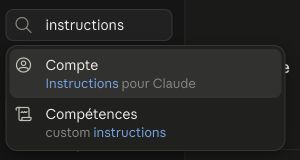
Use this for: preferences you want across conversations, such as your role, language, level of detail, and writing style.
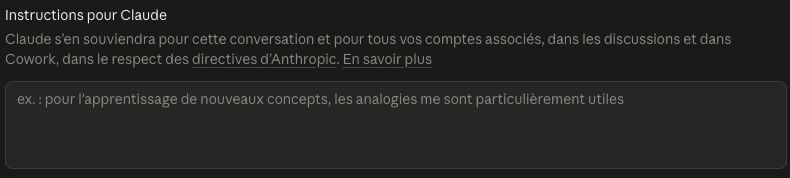
Open your profile menu, then Settings. Search for Instructions for Claude and open the matching result. In the account captured on 20 September 2026, it is under Account (Compte in French). Some documentation or accounts still show General. Use settings search if your menu differs.
Adapt the example below. Keep only instructions that are helpful for most of your work.
I work as [your role] and use Claude mainly for [2–3 recurring tasks]. My audience is usually [who reads your work].

Write in [language]. Lead with the answer, then explain what matters. Use clear, natural language and avoid unnecessary jargon.

Keep routine answers concise. For unfamiliar topics, explain the idea with one concrete example.

If a missing detail would materially change the answer, ask me. Otherwise, state reasonable assumptions and continue.

Separate facts from estimates. Flag uncertainty and tell me when an important claim needs verification. Do not invent sources.
Try it: ask Claude to explain a topic in your field to a new colleague. Does the tone and level of detail fit? If not, change one instruction and try again.
Put a single client’s requirements or a temporary task brief in the relevant chat or project. Account-wide instructions should stay useful across your conversations.
Official reference: Claude’s personalization features
Setup 02Choose what Claude should remember
Use this for: useful context you would otherwise repeat, such as your ongoing work or the audience you write for.
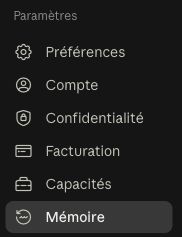
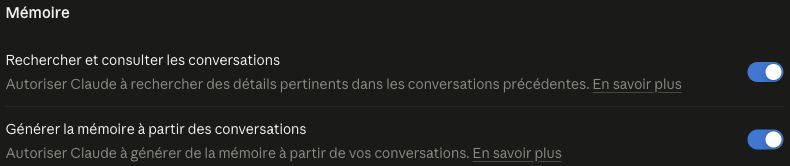
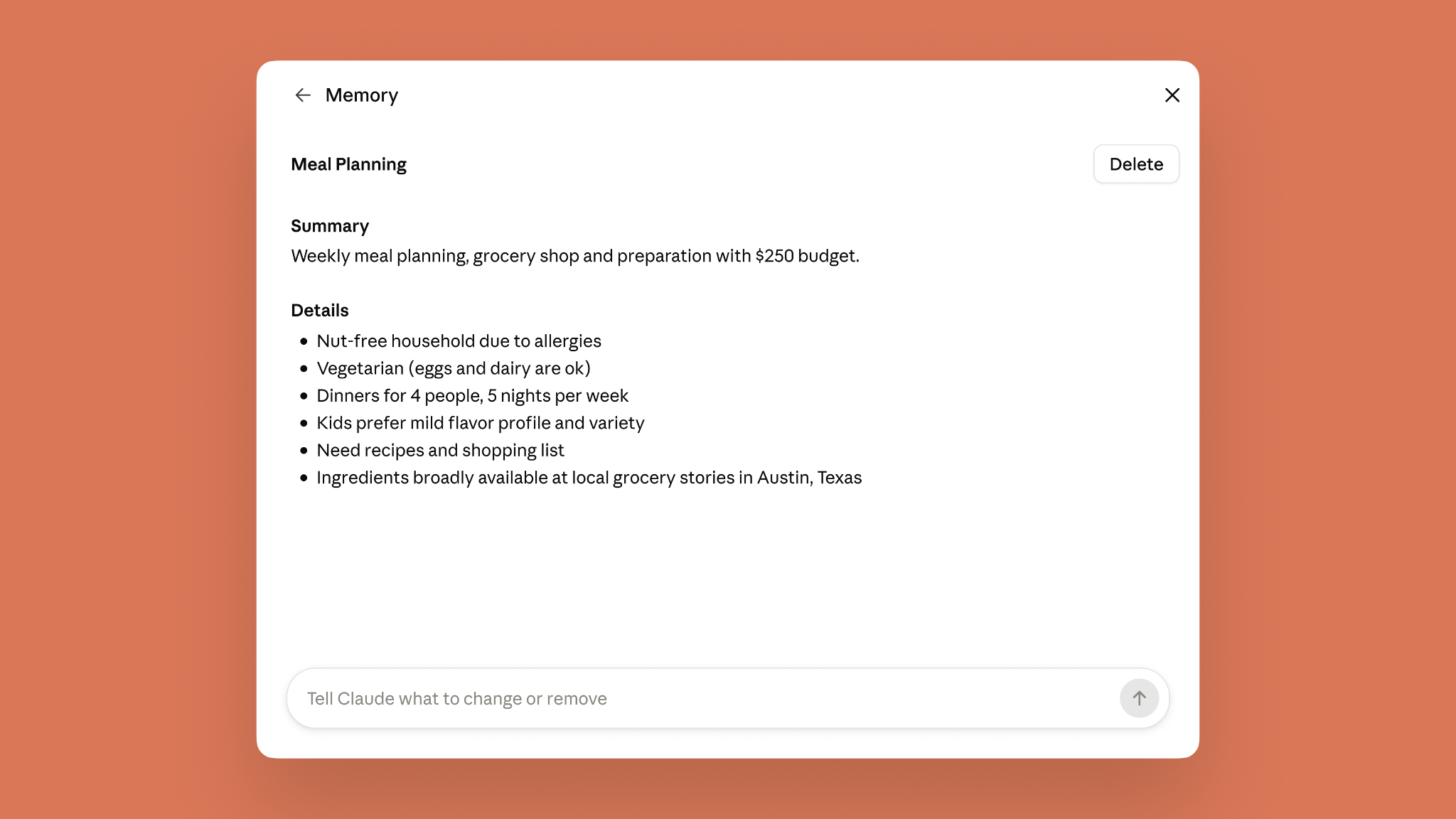
Go to Settings → Memory. Review Generate memory from chats and the saved entries below the controls. These may appear under You, Areas, or Topics, depending on your version. Memory can already be on for individual accounts; work accounts can require an owner to enable it.
Deleting a chat does not delete memories saved from it. Remove an unwanted topic separately in Memory settings.
Ask Claude to remember a small amount of useful context. Use your own details in this example.
Please remember this context for future conversations:

I work on [project or type of work]. My main audience is [audience]. I usually need help with [recurring task].

Tell me what you saved, so I can check that it is accurate.
Try it: inspect the saved entry in Settings → Memory, then ask about that context in a fresh conversation. Edit or delete anything inaccurate or no longer useful.
Memory is available on Free and paid plans; past-chat search is a separate paid-plan feature. These have separate controls. Don’t rely on either as a complete record: provide exact figures, dates, and source documents when they matter.
Use an incognito chat when you don’t want a conversation added to memory or chat history. On a work account, your organization’s retention rules still apply.
Official reference: Chat search and memory
Setup 03Connect one tool you actually use
Use this for: working with information in another service, instead of repeatedly copying it into Claude.
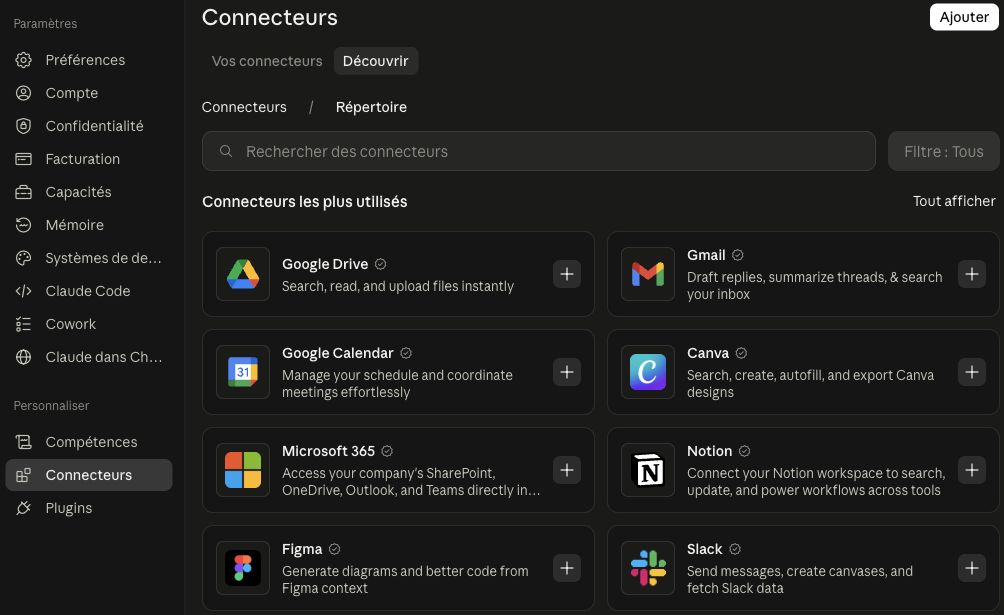
Open Settings → Connectors under Customize, then select Discover (Découvrir) and choose a service. Read what it can do, select Connect or Install, then follow the sign-in prompts. Availability depends on the service and your organization.
Then open a chat and use + → Connectors to enable that service for the conversation. Linking an account and turning it on in a chat are separate steps.
Start with one source you use often. For example, a document connector is useful when your task begins with “find the latest brief.”
Using my connected document service, find [exact document title].

Give me:
1. The source link and any visible last-updated date.
2. A five-bullet summary of the document.
3. Anything you could not access or verify.

Only read and summarize. Do not edit files, send messages, or create anything in the connected service.
Try it: open the source link and check a few claims against the document. If Claude can’t find it, check the connected account and your access to the original file.
Some connectors can change data or send messages. Review their permissions, and use an approved work account for company information. A connector can only reach material your source account can access.
Official reference: Set up and manage connectors
Try it with a real source
Create a small document called September content plan in a service you use, or attach a local file. This is practice data, so there is no need to use confidential work.
- Topic
- How to create a meeting-recap skill
- Audience
- Beginners using Claude for everyday work
- Deadline
- 24 September 2026
- Owner
- Leave this blank on purpose.
If you use Google Drive, connect the appropriate account and enable it in the chat. Google Workspace connectors have different capabilities: some can send messages or change events, so check the tools you enable.
Official reference: Google Workspace connectors
Open [document URL] using my connected document service, or read the attached September content plan.

First give me the document title and source link, or the attachment name. Then list the topic, audience, deadline, and owner.

Use only the document. Mark missing details “Not specified.” If you cannot open it, say so. Draft the answer here without changing the source or sending anything.
Success looks like: the exact topic, audience, and deadline above, with “Not specified” for the owner. Open the source yourself and compare. If the result includes an invented name, correct the instruction and try again.
Check memory separately
In a fresh chat, ask: “What do you remember about my audience? Separate saved context from assumptions.” Then check the saved entries in Settings → Memory. A confident answer alone does not prove the right information was saved.
Put the setup to work
Now give Claude a task with an audience, a source, and a definition of a useful result.
Help me prepare a short project update for [audience].

Use [exact connected document or attached file] as the source. Apply my writing preferences and relevant project context, but prioritize the current source if anything conflicts.

Include: progress, blockers, and next actions. Stay under 250 words. Link to the source and flag missing owners or dates. Draft it here for me to review.
Compare the draft with what you would actually send. If the format is something you’ll need every week, that’s a good candidate for a reusable skill.
You’re ready when…
- Your personal instructions reflect the way you want to work.
- You have reviewed memory and chosen whether to use it.
- You have tested a useful connector, or supplied a file directly.
- You can trace the important claims in the output back to a source.
If your screen looks different
Claude’s menus change. Look for the feature name as well as the menu path, and use the official pages below for the latest instructions.
Missing a work-account feature? Ask your organization’s Claude admin whether it is enabled.
Don’t have a connector? Paste the relevant text or attach an approved file. You can still make the task specific and useful.
Memory isn’t available? Start your chat with a short context paragraph. You don’t need every setting to get started.
Fix the right setting
| What you need | Where it belongs |
|---|---|
| The tone is wrong | Simplify personal instructions; test one change at a time. |
| A remembered detail is wrong | Edit or remove the saved entry in Settings → Memory. |
| The status is out of date | Request the current source again and check its link. |
| A document is missing | Check the account, chat connector toggle, and source permissions. |
| The connector cannot sign in | Disconnect and reconnect it in Customize → Connectors. |
In a Reddit discussion about a Notion workflow, a user describes answers drawn from remembered context instead of current records. It is an individual report, but a useful reminder: request the exact document and verify it.
Keep learning, from the source
These are the official references for the three setup steps.
Personalize ClaudeOfficial documentation · Account-wide and project instructions.Understand Claude’s memoryOfficial documentation · Saved context, controls, and incognito chats.Connect your apps to ClaudeOfficial documentation · Setup, permissions, and troubleshooting.